
# Phone dying fast? Disable these 6 hidden Android 17 settings to double battery life. Stop Gemini AI drain, mobile data standby, and system tracing to reclaim hours of screen time.

AnimaVersa – You picked up your phone this morning with a full charge and high hopes, yet here you are scrambling for a charging cable before dinner. The culprit is rarely how much you actually use your phone but rather what your phone is doing when you are not looking.
Android 17 has introduced incredible intelligence with Gemini and adaptive cores that make our devices smarter than ever. However, these features come at a steep power cost that standard battery savers simply cannot touch. We are living in an era where software capabilities often outpace battery chemistry, leading to a constant struggle for juice.
If you want to reclaim hours of screen-on time, you need to go deeper than the standard settings menu and look under the hood where the real power vampires hide. The solution lies in disabling six specific, hidden features that quietly sip power in the background. Turning these off forces your device into deep sleep faster and stops the modem and Neural Processing Unit from wasting energy unnecessarily.
This guide takes a technical yet relaxed approach to optimization, stripping away the bloat of modern software features to reveal the efficient hardware underneath. We are not just talking about dimming your screen or closing apps; we are talking about changing how your phone thinks and communicates.
By taking control of these six settings, you are manually retuning your device’s priorities to favor longevity over the split-second convenience that manufacturers assume you want. It is time to stop the bleeding and get the battery life you deserve by diving into the Developer Options and obscure system menus.
Disable Mobile Data Always Active to Stop Hidden Battery Drain
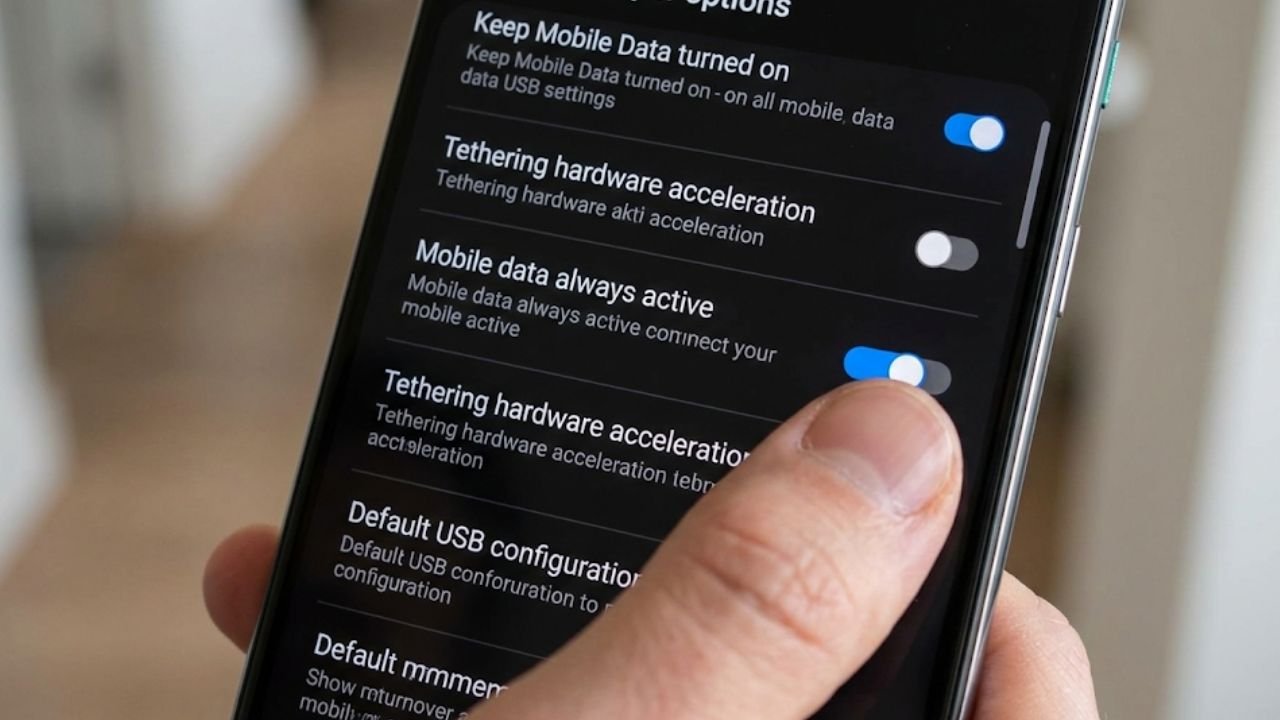
Your smartphone is constantly terrified of losing its internet connection. To prevent even a millisecond of interruption when you walk out the door, Android keeps your 5G or LTE modem fully powered and connected to the cellular tower, even when you are comfortably connected to strong Wi-Fi.
This feature is known as Mobile Data Always Active and resides deep within the Developer Options. While it enables fast network switching, it essentially means your phone is maintaining two simultaneous high-power internet connections at all times. The cellular modem is one of the most power-hungry components in your device.
Keeping it active when Wi-Fi is available is a massive waste of energy for a benefit you likely will never notice. You can disable this without impacting your daily experience, but you must first unlock Developer Options by tapping your Build Number seven times in the About Phone settings.
Once you are inside the Developer Options menu, scroll down to the Networking section where you will find the toggle for Mobile Data Always Active switched on by default. Flip it off immediately. Your phone will now fully shut down the mobile data connection when it establishes a stable Wi-Fi link.
The only difference you might notice is a split-second delay when switching from Wi-Fi to cellular data as you leave your house. The trade-off is hours of additional standby time because the modem is finally allowed to rest. This setting is a legacy of a time when mobile networks were slower to connect.
With modern 5G and LTE advancements, the handover is nearly instantaneous even without this battery-draining feature enabled. Manufacturers leave it on to ensure the absolute smoothest transition possible, prioritizing that fractional second of connectivity over your battery life.
By disabling it, you are taking back control and telling your phone that you do not need it to be hyper-vigilant about cellular data when you are sitting right next to your fiber-optic router. It is one of the simplest yet most effective tweaks you can make to stop idle drain.
Turn Off Wi-Fi and Bluetooth Scanning to Prevent Background Tracking
Most users assume that turning off the Wi-Fi or Bluetooth toggle in the Quick Settings panel stops the radios from working, but this is unfortunately not true. Android 17 uses a feature called Scanning to constantly hunt for nearby Wi-Fi networks and Bluetooth devices to help map your precise location.
This happens even when those radios are ostensibly turned off. This allows apps to know exactly where you are inside a building where GPS signals cannot reach, but it prevents your device from entering its deepest sleep states. Your phone is effectively shouting out to every router and beacon it passes, asking for a handshake.
This process keeps the processor awake and draining battery continuously. You need to intervene in the Location settings to stop this behavior completely. Navigate to your Location settings and look for a sub-menu labeled Location Services.
Inside, you will find options for Wi-Fi Scanning and Bluetooth Scanning which you should turn off immediately. This does not affect your ability to connect to Wi-Fi or Bluetooth devices when you actually want to use them. It simply stops the operating system from using these radios as secondary GPS tools in the background.
Your navigation apps will still work fine using standard GPS, but your battery graph will flatten out significantly when the phone is sitting idle in your pocket. The rationale behind these scanning features is to improve location accuracy in dense urban environments.
For the vast majority of users, standard GPS is more than sufficient. By disabling these scanners, you stop your phone from constantly waking up to query its environment. This is especially important if you move around a lot during the day.
A moving phone with scanning enabled is constantly processing new signals from every coffee shop, office, and home you pass. Shutting this down allows your device to ignore the noise and focus on conserving its energy for when you actually need it.
Restrict Gemini and AI Core Background Usage for Better Endurance
Android 17 is built around AI, with the Gemini assistant integrated deeply into the operating system to analyze your screen, predict your actions, and process voice commands. While this makes the phone smart, the constant background inference requires the Neural Processing Unit or NPU and CPU to remain active.
Features like proactive AI suggestions mean your microphone and processor are always in a state of high alert, waiting for input or context clues. This background processing is a significant, often overlooked source of battery drain. It is especially impactful on devices with powerful but power-hungry AI cores that are eager to show off their capabilities.
You can reclaim this power by restricting how these AI assistants operate. Navigate to your App settings and find the specific entry for Google or your default digital assistant. You want to disable background usage for these apps or turn off voice match features if you do not use them frequently.
For a more aggressive approach, developer options on some Android 17 builds allow you to limit the AI Core or similar system apps. By restricting background battery usage for the Gemini app and the Google app to Restricted rather than Optimized, you tell the system to prioritize battery life over instant AI readiness.
This stops the NPU from waking up constantly to analyze context that you are not actively using. It effectively puts the AI to sleep until you explicitly call upon it. While having an assistant that anticipates your needs sounds futuristic, the reality is that it burns through battery life to save you a few taps.
If you are willing to interact with your phone more deliberately, you can save significant power by silencing these predictive engines. It is about choosing whether you want a phone that is always thinking or a phone that lasts all day.
Deactivate System Tracing to Reduce CPU Overhead
There is a feature running on many Android phones that is designed solely for software engineers to debug performance issues, yet it often ends up enabled on consumer devices. System Tracing records detailed logs of your phone’s activity, saving packets of data about CPU cycles and app launches to storage.
This process is akin to writing a diary of everything your phone thinks and does, every single second. This writing process consumes CPU cycles and storage I/O, generating heat and eating through battery percentage. It provides no benefit to a regular user who just wants to browse Instagram or send emails.
You should check your Developer Options to ensure this is disabled. Scroll down to the Debugging section and look for System Tracing. Entering this menu, you will often find that Record trace might be toggled on, or specific categories are selected for monitoring.
Ensure the main toggle is turned off. You should also tap on Clear saved traces to remove any existing log files that might be taking up space. Disabling System Tracing removes a completely unnecessary overhead from your processor.
This allows it to throttle down to lower frequencies more often. It is baffling why this feature sometimes comes enabled or gets toggled on during updates, but ensuring it is off is a critical step in optimizing your device.
Think of it as closing a heavy application that is running invisibly in the background. The system trace does not just sit there; it actively writes data, which keeps the storage controller active and prevents the CPU from idling. By turning it off, you are removing a layer of administrative bureaucracy that your phone does not need to function efficiently.
Enable Suspend Execution for Cached Apps to Freeze Background Processes
When you swipe away an app or go back to the home screen, you expect the app to close, but Android often keeps it in a cached state. This allows the app to open instantly if you return to it. While efficient for multitasking, poorly coded apps can abuse this state to keep running processes in the background.
They often ping servers or update content when they should be frozen. Android 17 includes a powerful Developer Option called Suspend Execution for Cached Apps. This feature acts as a deep freezer for any app not currently on your screen.
It forces the operating system to completely halt the code execution of cached apps, preventing them from using even a sliver of CPU power until you explicitly open them again. This feature is a game-changer for standby time.
Inside Developer Options, look for the Apps section or search for Suspend execution for cached apps. By default, this might be set to a device default that is too lenient. Toggle this to Enabled.
You might need to reboot your device for the change to take full effect. Once active, apps residing in your RAM will be strictly frozen. You will not lose your place in the app, but the app will be unable to drain battery while it waits for you.
This effectively neutralizes rogue apps that try to stay active in the background without your permission. This setting essentially brings iOS-style background management to Android, ensuring that multitasking does not come at the cost of battery life.
It is particularly effective against social media apps and free games that are notorious for running analytics and ad-fetching processes in the background. By freezing them, you ensure that they only consume power when you are actually looking at them. It transforms the behavior of your device, making it feel snappier and significantly extending its endurance during long periods of inactivity.
Disable Usage and Diagnostics to Stop Telemetry Data Uploads
Your phone is constantly sending a stream of data back to Google and the manufacturer about how you use your device, which apps crash, and the status of your network connections. This is called Usage and Diagnostics. While this telemetry data helps engineers fix bugs in the long run, in the short term, it means your radio is periodically waking up to upload data packets.
This creates a wakelock, which pulls your phone out of deep sleep mode to establish a connection and transmit data. Over the course of a day, these small transmissions add up to a noticeable chunk of battery life. Turning this off is a privacy win as well as a battery win.
Navigate to the Google settings menu within your main Settings app. Tap on the three dots in the top corner or look for Usage & diagnostics. Toggle this switch to off.
This stops the background data collection service. Your phone will still function perfectly, and you will still receive updates. However, you will no longer be donating your battery life to the cause of gathering global usage statistics.
This ensures that when your screen is off, your radio stays off. It is a small change that reflects a larger philosophy of ownership. You bought the device, and its battery should be used for your apps and your communications.
It should not be used for sending debug reports to a server halfway across the world. By disabling this, you reduce the chatter that happens between your phone and the cloud. This allows your device to rest more deeply and for longer periods.
It is the final step in quieting the background noise that keeps your battery meter ticking down even when the phone is on the table.
Understanding the Power Demands of Modern Android Versions
We are living in an era where software capabilities often outpace battery chemistry. Android 17 brings powerful features that rely on constant connectivity and local processing. This creates a baseline power draw that is higher than older versions of the operating system.
The default settings are tuned for maximum convenience and immediate responsiveness, not for endurance. Manufacturers assume you have a charger nearby and prioritize features like instant network switching and background AI readiness.
By taking control of these six settings, you are manually retuning your device’s priorities. You are telling the operating system that longevity is more important than the split-second advantage of keeping a modem active or the convenience of background location scanning.
This approach uses the inverted pyramid logic of optimization. We started with the highest impact changes like radios and background processing because these are the physical components that draw the most watts. The screen is the only component that uses more power, but you need the screen to use the phone.
The modem, the NPU, and the GPS radios are often running when you are not using the device at all. Optimizing these ensures that your battery drain is purely a result of your actual usage, not the system’s invisible overhead.
Manual Configuration for Long Term Battery Health
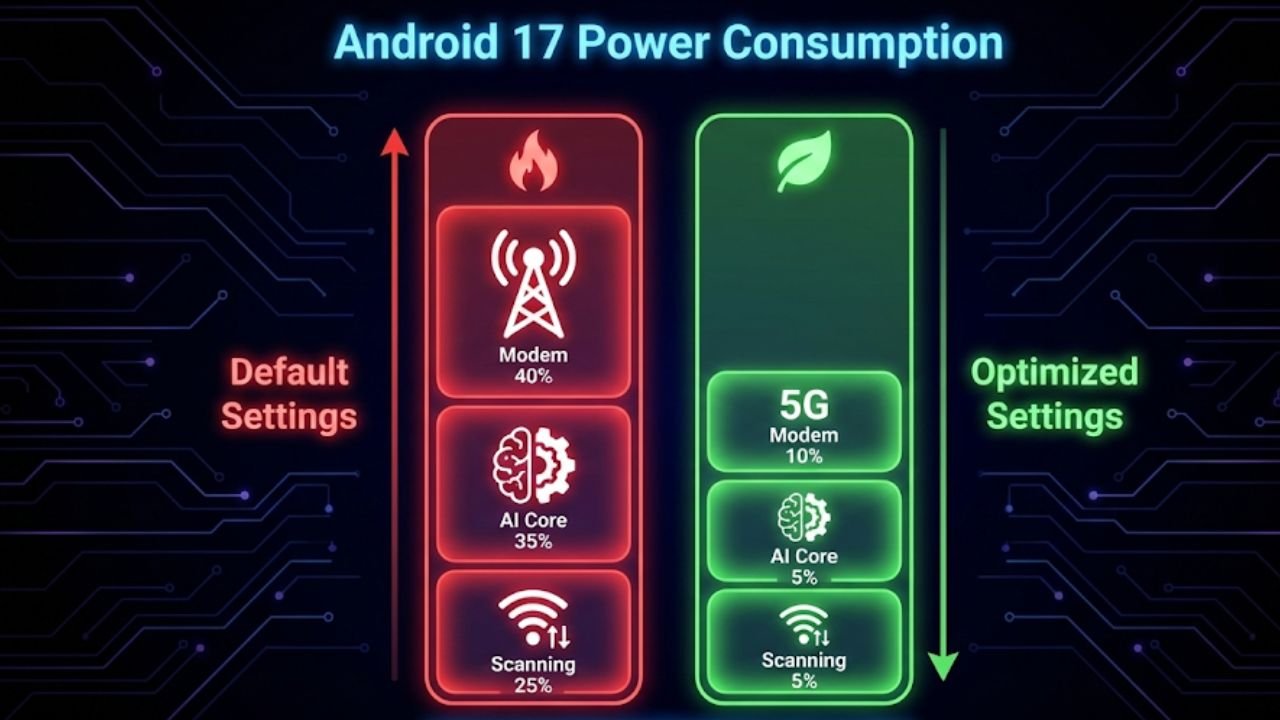
Implementing these changes transforms your user experience from one of anxiety to one of confidence. You will notice that your phone loses significantly less charge overnight and that it runs cooler during the day. The suspend execution and system tracing tweaks specifically reduce the thermal load on the CPU.
This preserves the long-term health of your battery hardware. Batteries degrade faster when exposed to heat, and constant background processing generates low-level heat that slowly cooks the chemical cells. By silencing these hidden processes, you are not just getting more hours today; you are extending the lifespan of the device itself.
It is worth noting that Android is a complex ecosystem, and updates can sometimes revert these settings. It is good practice to check your Developer Options after every major system update to ensure that Mobile Data Always Active hasn’t quietly turned itself back on. Similarly, app updates can sometimes reset permissions, so keeping an eye on your Location Services is crucial.
These six settings represent the most effective, low-risk, high-reward optimizations available to power users today. They strip away the bloat of modern software features to reveal the efficient, powerful hardware underneath.
Read More : Best Free Windows Apps 2026: Unlock Hidden Features & Performance
Summary of 6 Hidden Android 17 Settings to Double Battery Life
- Disable Mobile Data Always Active: Stops the cellular modem from draining power when Wi-Fi is connected.
- Turn Off Wi-Fi & Bluetooth Scanning: Prevents radios from constantly hunting for location signals in the background.
- Restrict Gemini/AI Background Usage: Limits the NPU from performing unnecessary predictive processing.
- Disable System Tracing: Stops the creation of massive, battery-hogging log files meant for developers.
- Enable Suspend Execution for Cached Apps: Freezes unused apps in RAM to prevent them from using CPU cycles.
- Turn Off Usage & Diagnostics: Stops the constant upload of telemetry data to servers.
Read the full breakdown on Raven S for more tech deep dives. Just as you optimize your phone’s hardware, optimizing your digital presence is equally crucial. Follow and like AnimaVersa on social media to stay ahead of the curve.

Raven S., is a technologist, professional coder, and software enthusiast with a singular vision: to bring transparency, depth, and genuine expertise to tech journalism.